Many homeowners love affordable automation gear but often struggle with ecosystem limitations. Integrating budget-friendly hardware into a unified dashboard usually feels like a technical headache. You might feel frustrated when your favorite sensors or plugs refuse to appear in your preferred interface.
Fortunately, the landscape of home automation is shifting rapidly. Modern standards now allow for seamless integration, bypassing the need for complex server setups or coding knowledge. Reliability and simplicity are finally becoming the industry standard for users who value their time.
This guide explores the most efficient methods for achieving native compatibility. We focus on Matter-enabled hardware that bridges the gap between different platforms. By choosing the right products, you can enjoy a streamlined experience that prioritizes both privacy and performance.
Key Takeaways
- Native Matter support eliminates the need for complex third-party software bridges.
- Choosing the right hardware ensures long-term stability for your automated home.
- Privacy remains a top priority when selecting modern automation solutions.
- Official compatibility offers a more reliable user experience than unofficial workarounds.
- Focusing on current standards provides better value for your investment.
What This Tuya-to-Apple HomeKit Review Covers
This review guides you on how to link your tuya smart devices to Apple’s ecosystem easily. We focus on new, stable ways to connect smart homes. This makes your experience better and more reliable.
The central question: direct HomeKit support or a Matter connection
There’s a big difference between Apple Home support and Matter integration. Older devices might need special bridges, but new ones aim for seamless interoperability.
We’ll look at the differences in hardware needs and setup steps. Knowing this helps you pick the right gear for your home.
What “without Homebridge” means for this setup
“Without Homebridge” means no need for a server or software bridge. This guide uses certified Matter devices or official gateways instead.
This setup is more reliable and responsive. It makes your smart home easier to maintain and less prone to downtime.
The review criteria: compatibility, reliability, privacy, cost, and ease of use
We check products against five key areas. These help you choose devices that fit your daily life.
| Criteria | Focus Area | Importance for Tuya Smart Devices |
|---|---|---|
| Compatibility | Matter vs. Proprietary | High |
| Reliability | Local vs. Cloud | High |
| Privacy | Data Handling | Medium |
| Cost | Hardware Investment | Medium |
| Ease of Use | Setup Complexity | High |
The Tuya Smart and Smart Life apps are key for setting up devices. Even with a Matter setup, these apps help with updates and network pairing.
How Tuya Smart Devices Work With Apple HomeKit in 2026
Understanding how Tuya devices work with apple homekit is easier when you know the basics. For a long time, smart homes were hard to connect because of different systems. Users had to use special bridges to link their devices.
Why most Tuya Smart devices do not appear directly in Apple Home
Tuya products mainly talk to the company’s cloud servers. They use special protocols that apple homekit doesn’t understand. So, these devices can’t be seen in the Apple Home app by default.
“The true power of a smart home lies in the seamless interaction between devices, regardless of the brand or the underlying platform.”
Apple has strict rules for security and privacy. Without a special link, devices can’t connect to your iPhone or iPad.
The role of the Tuya Smart app and Smart Life app
The Tuya Smart and Smart Life apps control your devices. They handle the cloud-based authentication needed for your devices to work.
These apps are great for setting up schedules and simple automations. But they don’t share data with Apple automatically. You need new, standard ways to do that.
How Matter changes smart home integration between Tuya and Apple
Matter has changed how devices talk to each other. Tuya products can now use local control, which means they don’t always need the cloud.
This change makes connections faster and more stable. It also breaks down the barriers between Tuya and Apple devices.
Device support versus hub or bridge support
It’s key to know the difference between a Matter-certified device and a bridge. A device connects directly, while a bridge translates for other devices.
Using a bridge is smart if you have lots of sensors. But make sure the bridge supports Matter to show all your devices.
Why firmware and regional availability affect compatibility
Even if a device looks right, its firmware is what really matters. Manufacturers often make regional versions that might not support Matter.
Always check if your device model is Matter-ready for your area. Looking at the latest firmware notes is crucial to make sure it works with your smart home system.
How to Connect Tuya Smart Devices to Apple HomeKit Without Homebridge in 2026
Smart home tech has gotten easier to use. If you’re wondering how to link Tuya smart devices to Apple HomeKit without Homebridge in 2026, you’re in the right place. The Matter standard makes it simple, eliminating the need for complicated software.
Confirm that the Tuya product or gateway supports Matter
First, check if your device is Matter-certified. Look for the Matter logo on the packaging or device. Not all Tuya devices support Matter, so it’s crucial to check the manufacturer’s info.
Update the device, Tuya Smart app, and Apple Home software
Old software can cause pairing issues. Make sure your iPhone or iPad is updated to the latest iOS. Also, check for firmware updates in the Tuya Smart or Smart Life app.
Pair the Matter device with the Tuya Smart app first
Even though you’ll use Apple Home, start with the Tuya app. Here’s how to do it right:
- Turn on your device and enter pairing mode.
- Open the Tuya Smart app and choose “Add Device.”
- Complete the Wi-Fi or Thread setup as shown.
- Check that the device works in the Tuya app before moving on.
Add the device to Apple Home with its Matter setup code
With the device set up in Tuya, connect it to Apple Home. Find the Matter QR code or setup code on the device or in the app. Open Apple Home, tap the “+” icon, and scan the code to add the device.
Assign rooms, names, services, and Siri controls
After pairing, organize your new device. Place it in a room and name it clearly. This makes Siri voice commands work smoothly.
By following these steps, you can easily connect Tuya smart devices to Apple HomeKit without Homebridge in 2026. This method offers a stable and responsive smart home experience.
Compatibility Checks Before You Buy or Reset a Device
Smart home standards have specific logos and technical needs. Before buying, check if the device fits with your current setup. This avoids the need for homebridge workarounds.
How to identify the Matter logo and official Apple Home support
Look for the Matter logo on the packaging. It shows the device meets a universal standard for working together.
Always verify Apple Home support on the box or website. A simple “smart” label is not enough for easy Apple device connection.
Checking product listings, manuals, firmware notes, and Tuya support pages
Product listings often have hidden software details. Check the manufacturer’s support pages for Matter functionality and firmware versions.
“The true power of a smart home lies in the seamless integration of devices that communicate without friction.” — Anonymous
Reading the user manual is key. It explains how to set up the device. If it doesn’t mention Matter, it might not work with Apple Home.
Distinguishing a Matter-over-Wi-Fi device from a Matter-over-Thread device
Knowing the connection type is crucial. Matter-over-Wi-Fi devices connect directly to your router. Matter-over-Thread devices create a mesh network.
When an Apple home hub is required
An Apple home hub, like a HomePod or Apple TV 4K, is mandatory for Matter devices. Without it, you can’t control devices remotely.
Why a Thread Border Router may be necessary
Thread devices need a Thread Border Router. It connects your Thread network to your Wi-Fi, ensuring reliable communication.
Checking whether lights, plugs, switches, sensors, locks, and cameras are supported
Not all devices work the same in the Apple Home app. Lights and plugs are usually supported, but cameras and locks might have different features.
Make sure the device model has the features you need. This ensures a smooth setup without homebridge.
Hardware and Software Requirements for a Reliable Setup
A successful smart home integration starts with the right equipment. Make sure your mobile device is up to date. You need an iPhone or iPad with the latest iOS or iPadOS for the Apple Home app.
Compatible iPhone or iPad and the current Apple Home app
Your mobile device is key during setup. Make sure your Apple Home app is updated. Outdated software can cause problems when setting up.
Apple home hubs: HomePod, HomePod mini, and Apple TV 4K
An Apple home hub is needed for remote access and automations. Use a HomePod, HomePod mini, or Apple TV 4K as the hub. Without one, devices work only when you’re home.
Wi-Fi requirements for Tuya Matter devices
Tuya Matter devices use 2.4 GHz Wi-Fi. Your router must broadcast this frequency. A strong Wi-Fi signal is crucial for device performance.
Thread requirements for compatible Tuya products
Some Tuya products use Thread for networking. You need a Thread Border Router, like a HomePod mini or Apple TV 4K. Thread offers superior reliability over Wi-Fi.
Tuya account, Smart Life account, and manufacturer permissions
Keep your Tuya Smart or Smart Life account active. Give the necessary permissions for device communication. Always update your firmware to the latest version.
Keeping the Apple Account and Tuya account credentials secure
Protect your digital identity for a safe smart home integration. Use strong, unique passwords for Apple ID and Tuya account. Enable two-factor authentication to prevent unauthorized access.
Preparing a separate 2.4 GHz network when device pairing requires it
Disable the 5 GHz band or create a 2.4 GHz guest network if needed. This ensures your phone and device pair correctly.
“The true power of a connected home lies in the stability of its foundation, where hardware and software work in perfect harmony.”
| Connection Type | Primary Benefit | Hardware Needed |
|---|---|---|
| Wi-Fi | High bandwidth | 2.4 GHz Router |
| Thread | Low latency | Border Router |
| Bluetooth | Easy pairing | Mobile Device |
Preparing a Tuya Device for Apple Home Pairing
To connect your devices to Apple Home, start with a clean setup and a strong network. Correctly configuring your hardware helps avoid pairing issues. Follow these steps to get your tuya smart devices ready for easy integration.
Resetting a Tuya Smart plug, bulb, switch, or sensor safely
Most devices need a factory reset to remove old network settings. Press the power button for 5 to 10 seconds until the light blinks fast. Always check your product manual for the exact reset steps.
Removing old pairings and duplicate device records
If your devices were linked before, remove those links first. Use your app to delete old device records. This ensures your tuya smart devices are seen as new by Apple Home.
“A clean configuration is the foundation of a reliable smart home. Always ensure your devices are factory-fresh before starting a new pairing process.”
Updating firmware before attempting Matter commissioning
Updates often add Matter support to devices. Check your app for firmware updates. The latest version helps your tuya smart devices work well with Apple Home.
Placing the device near the router, Apple home hub, or Thread Border Router
Strong signals are key for device pairing. Place your device close to your router or Thread Border Router during setup. Then, you can move it to its final spot.
Recording the Matter QR code and numeric setup code
Every Matter device has a unique setup code. Keep this code safe or take a photo of it before mounting. This code is your backup if scanning the QR code fails.
| Preparation Step | Action Required | Importance |
|---|---|---|
| Factory Reset | Hold button 5-10s | High |
| Firmware Update | Check app settings | Critical |
| Proximity | Move near hub | Medium |
| Code Storage | Save QR/Numeric | High |
Adding a Tuya Matter Device to the Tuya Smart App
Connecting your devices to the Tuya Smart app is key for a 2026 smart home. Make sure your device works well in the Tuya Smart app before linking it to Apple Home.
Opening the correct Tuya Smart or Smart Life device workflow
First, download the newest Tuya Smart or Smart Life app. Go to “Add Device” and turn on Bluetooth on your phone. This makes finding your device easy.
Connecting the device to Wi-Fi or Thread according to its instructions
Follow the app’s instructions for your device. Use either 2.4GHz Wi-Fi or Thread. For devices like the Zemismart M1, manage up to 100 Zigbee and 20 Thread devices at once.
Verifying the device works inside the Tuya platform
After pairing, test your device by turning it on and off in the app. If it updates right away, you’re good to go. This step stops sync problems later.
Checking available controls before sharing the device with Apple Home
Know which features are cloud-based and which are local. Testing these early helps set the right expectations for Apple Home.
Testing power, brightness, color temperature, temperature, or motion controls
Make sure all controls work as they should. For example, adjust a smart bulb’s brightness and color to see if it responds well.
| Device Type | Primary Control | Secondary Feature |
|---|---|---|
| Smart Bulb | Power Toggle | Color Temperature |
| Smart Plug | Power Toggle | Energy Monitoring |
| Motion Sensor | Detection Status | Battery Level |
Confirming whether schedules and automations remain available in Tuya
Check if your schedules and cloud automations still work after setup.
“Local control is the gold standard for reliability, but cloud-based automations provide the flexibility needed for complex home routines,” notes a leading smart home engineer.
Keeping these settings active in the Tuya app keeps your home running smoothly, even if your main hub has a temporary issue in 2026.
Adding the Same Tuya Device to Apple Home Through Matter
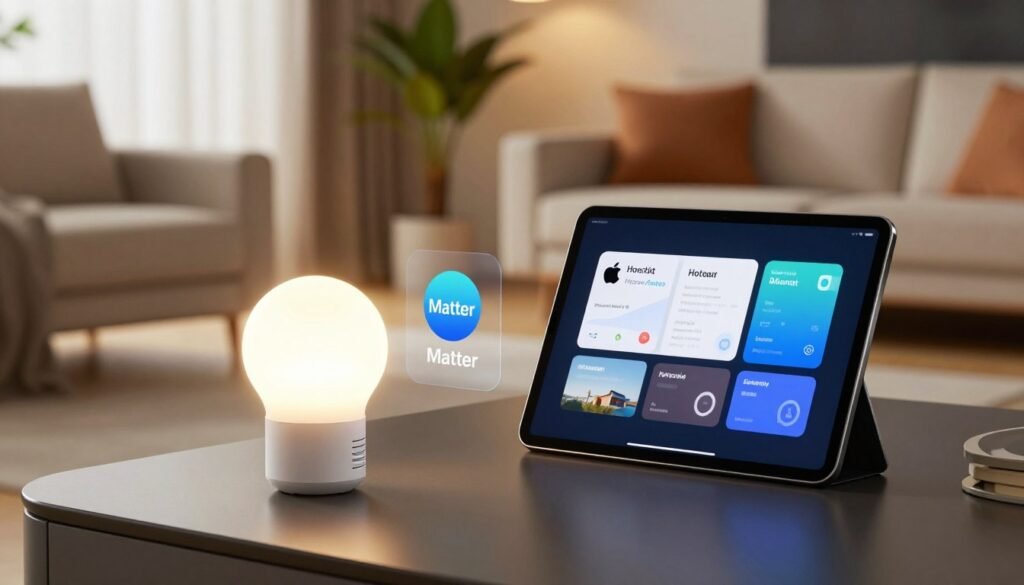
To add your Tuya device to apple homekit, follow a simple step using Matter. This makes your device part of your main home management system.
Using the Matter QR code or numeric code in the Apple Home app
Start by opening the Apple Home app and choosing to add a new accessory. You’ll need to scan the Matter QR code on your device or its packaging.
If scanning fails, enter the numeric setup code manually. This unique identifier helps your device connect securely to your apple homekit network without extra steps.
Selecting the correct Apple Home and assigning the device to a room
After the app finds your device, pick the home where it will go. It’s important to assign it to a room for an organized smart home.
Correct room assignment makes control easier and automations work better. Make sure your device is in the right virtual space in the app.
Renaming accessories for dependable Siri recognition
Choose a simple name for your device for better Siri commands. Avoid names that might confuse Siri.
Use names like “Living Room Lamp” or “Front Door Lock.” This simple adjustment helps Siri understand you better.
Checking which device services Apple Home exposes
Apple homekit might show fewer controls than the Tuya app. Matter focuses on core functions for stability across platforms.
Look at the available controls to see what features work. Some advanced settings might only be in the Tuya app.
Testing local control when the internet connection is unavailable
One key benefit is local control. Try controlling your device without internet to see if it works.
If it does, it means your setup is reliable. This robust reliability is a key feature of Matter.
Review of Tuya Matter Integration: Features That Work Well
Now, getting your smart home integration between Tuya and Apple HomeKit works better with Matter. This change means less cloud hassle and more reliable device control.
Unified control from the Tuya Smart app and Apple Home
One big plus is managing your devices on two apps. Use the Tuya Smart app for detailed settings and Apple Home for everyday use. This smart home integration makes sure you can access your devices easily, no matter your preference.
Siri voice control and Apple Home automations
Matter lets you use Siri directly for voice commands. You can change lights, adjust thermostats, or lock doors just by talking. Apple Home automations also offer complex triggers that work fast, like when you arrive or at specific times.
Local-network responsiveness compared with cloud-only Tuya control
Old setups were slow because of cloud processing. Matter changes this with local-network communication. Your commands go straight to devices, making everything feel quicker and more responsive.
Multi-admin and multi-platform Matter sharing
Matter makes it easy to share devices across platforms. You can link your Tuya device to Apple Home while keeping it in the Tuya system. This is great for homes with different devices.
Using scenes, schedules, and presence-based automations
You can set up complex routines with Matter. Whether it’s a “Movie Night” scene or a “Good Morning” schedule, everything works reliably. Presence-based automations, like turning on lights when you get home, are also more dependable.
What Apple Home can automate more effectively
Apple Home is good at context-aware automations that use location and sensor data. It’s great for managing scenes with devices from different makers. The interface is easy to use for setting up triggers based on who’s home.
What remains easier to manage in the Tuya Smart app
While Apple Home is good for daily use, the Tuya Smart app is better for advanced device settings. It’s easier to update firmware, adjust bulb colors, and check energy usage in the Tuya app. It’s a good idea to keep the Tuya app for these tasks.
Review of Tuya Matter Integration: Limitations and Missing Features
Switching to a Matter-based system in 2026 has many benefits. But, users need to know about some technical limits. The industry is moving towards universal standards. Yet, we still have a mix of old hardware and new software.
Why some Tuya accessories still require a Tuya gateway or cloud connection
Older Tuya devices use Zigbee or Bluetooth. These don’t speak Matter’s language. So, they need a Tuya gateway to connect to your network. Without it, they can’t join the Apple Home ecosystem, making cloud connection necessary.
Reduced feature sets after adding a device to Apple Home
Adding a device to Matter might remove some features. Apple Home focuses on simplicity and stability. This means losing some controls found in the Tuya app. You might miss custom light effects, sensitivity settings, or timer options.
“The true test of a smart home standard is not just connectivity, but the depth of control maintained across different platforms.”
Camera, video doorbell, alarm, and energy-monitoring limitations
Certain devices face big challenges in 2026. Cameras and video doorbells might lack two-way audio or motion zone support. Energy-monitoring plugs might not show detailed power usage in Apple Home, offering only basic on-off control.
Firmware updates that may still require the Tuya Smart app
Even with Apple Home integration, devices still need the Tuya app for updates. These updates are critical for security. So, you can’t fully remove the Tuya app from your phone.
Intermittent pairing, duplicate accessories, and stale device status
Users sometimes see “No Response” for active devices in Apple Home. This is due to outdated status or duplicate records. While these problems are less common in 2026, they still happen in complex setups.
Pros and Cons of Connecting Tuya Devices to Apple Home Without Homebridge
Choosing between Matter and homebridge is key for smart home fans. Matter offers a smoother experience, unlike older methods. It’s better for daily use.
Pros of the Matter-based approach
Official interoperability without maintaining a server
Switching to Matter means no more complex software. You don’t need a server or homebridge to keep devices online. This makes your smart home stable and easy to manage.
Simple Siri and Apple Home control
Matter gives you a seamless Apple experience. You get reliable Siri voice commands and smooth performance on all Apple devices. This direct link cuts down on delays.
Fewer third-party credentials and less custom configuration
Matter means fewer accounts and tokens. This makes your setup simpler and safer. It’s a cleaner, more secure way to manage your home.
Cons of the Matter-based approach
Limited selection of Tuya devices with full Matter support
Not all Tuya devices work with Matter yet. If you have older devices, you might need homebridge to connect them.
Possible loss of advanced Tuya features
Some Tuya features, like detailed energy tracking, might not work as well with Apple Home. The interface might feel simplified compared to the Tuya app. This is a trade-off for universal compatibility.
Dependence on compatible Apple hubs, firmware, and network conditions
A good setup needs a strong network and the right Apple devices. If your firmware is outdated or your network is weak, the connection could fail. Unlike homebridge, you have less control over the connection.
| Feature | Matter Integration | Homebridge Setup |
|---|---|---|
| Setup Complexity | Low (Plug and Play) | High (Technical) |
| Maintenance | Minimal | Constant Updates |
| Device Support | Limited (Newer) | Extensive (Legacy) |
| Reliability | High (Official) | Variable |
How Tuya Gateways and Matter Bridges Affect Compatibility
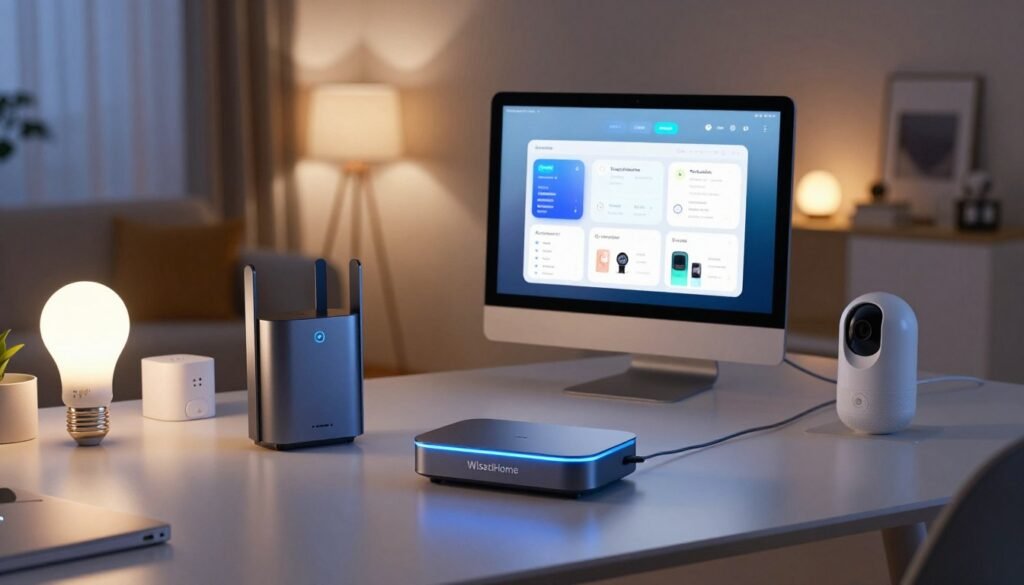
In 2026, smart home tech has evolved, making it easier to connect old devices. Many products now work with Matter directly. But, a dedicated bridge can translate for your whole system.
When a Tuya Matter-compatible gateway can expose sub-devices to Apple Home
A Matter-compatible gateway acts as a bridge. It connects non-Matter devices, like Zigbee sensors, to Apple Home. This lets you control many devices from one place, offering unified control.
Differences between a Matter bridge and a conventional Tuya Zigbee gateway
A Zigbee gateway uses the Tuya cloud to talk to devices. But, a Matter bridge talks directly to your Apple Home hub. This makes your automations faster and more reliable in 2026.
Checking whether connected Zigbee devices inherit Apple Home support
Just pairing a gateway doesn’t mean all devices will work with Apple Home. You need to check if the device profile is supported. For example, the Zemismart M1 supports many devices and has Ethernet connectivity.
Why a gateway may be preferable for multiple sensors and switches
Replacing many devices with new Matter ones is hard. A gateway lets you keep your old devices and still use Apple Home. This is cost-effective for big smart home setups.
Power, network, and placement considerations for the gateway
Put your gateway in a central spot with a stable Ethernet connection. Consistent power is key to keep all devices connected. Make sure it’s not near metal objects that can block signals.
Limits imposed by the gateway’s supported device profiles
Check the manufacturer’s guide to see what devices work with the bridge. Some gateways work great with lights but not with complex sensors. Knowing these limits in 2026 helps avoid setup problems.
Troubleshooting Pairing, Discovery, and Control Problems
When your Tuya devices won’t talk to Apple Home, a step-by-step approach is key. Modern Matter integrations aim for smooth connections, but sometimes, issues pop up. This could be due to network problems or software issues.
Unlike old days when homebridge helped, today’s direct connections need specific conditions to work well.
What to do when Apple Home cannot find the Tuya device
First, check if your device is powered on and close to your router. Make sure it’s in range of your Wi-Fi or Thread Border Router. Restarting your Apple Home hub, like an Apple TV or HomePod, often fixes temporary issues.
Fixing invalid Matter codes and expired commissioning attempts
Matter setup codes are time-sensitive and must be entered correctly. If you get an error about an invalid code, double-check the numbers or scan the QR code again in good light. If the attempt times out, reset the device to pairing mode as per the manufacturer’s guide.
“The stability of a smart home ecosystem depends on the strength of the local network and the adherence to standardized communication protocols.”
Resolving Wi-Fi, Thread, and local-network communication errors
Network stability is crucial for a smart home to work well. Make sure your iPhone and Apple Home hub are on the same network. If using Thread, check that your Border Router is active and connected to the device.
Removing duplicate accessories without deleting the Tuya account
Sometimes, a device might show up twice in Apple Home after a failed pairing. To remove the extra entry, select the accessory, go to settings, and choose “Remove Accessory.” This keeps your dashboard clean without touching your main Tuya account or other services.
When to reset, re-pair, update, or contact Tuya support
If simple fixes don’t work, look for firmware updates in the Tuya Smart app. A factory reset should be your last resort before contacting support. While some used homebridge for fixes, official support is now the best choice for lasting solutions.
| Issue Type | Primary Solution | Secondary Action |
|---|---|---|
| Discovery Failure | Check Hub Proximity | Restart Home Hub |
| Invalid Code | Re-scan QR Code | Manual Entry |
| Duplicate Device | Remove in Apple Home | Clear Cache |
| Network Error | Verify Wi-Fi/Thread | Update Firmware |
Privacy, Security, and Reliability Considerations
Choosing the right smart home integration method is key. It affects how your data is handled and how devices work when the network is down. Switching from cloud-based setups to local protocols changes how your hardware and the internet interact.
Comparing Tuya cloud control with Matter local control
Tuya devices often need cloud servers to work. If your internet goes out, your lights or switches might stop working. On the other hand, Matter-enabled devices use local communication. This lets your Apple Home hub control devices directly over your network.
Securing the home network and Apple Account
Your Apple Account is the main key to your smart home. Using two-factor authentication is crucial to keep your devices safe. Also, setting up a dedicated VLAN for smart home traffic adds extra protection against threats.
Understanding data permissions in the Tuya Smart app and Apple Home
Even with Matter, you might still need the Tuya Smart app for setup or updates. It’s important to check the permissions these apps have on your device. Limiting access to location data and network discovery helps keep your privacy safe while keeping the system working.
Maintaining dependable automations during internet or cloud outages
Local control is the best for reliability. Matter devices talk directly to your Apple Home hub. This means your automations keep working even without internet. It’s much more resilient than cloud-based systems.
Why official firmware and documented integrations are safer than unofficial workarounds
Some try to change hardware with custom firmware to avoid cloud needs. But, using official Matter integrations is safer and more stable. Official firmware gets security updates regularly, keeping your home safe from threats.
| Feature | Cloud-Based Control | Matter Local Control |
|---|---|---|
| Internet Dependency | High | None |
| Response Speed | Variable | Instant |
| Security Updates | Manufacturer Managed | Official Firmware |
| Automation Reliability | Low during outages | High |
Who Should Use Tuya Devices With Apple Home Without Homebridge
Choosing the right path for your smart home depends on your hardware and comfort level. Many tuya smart devices offer great connectivity. But, the method you pick affects your experience in the long run.
Best fit for Apple households buying new Matter-certified Tuya products
Shopping for new gear? Go for Matter-certified products. They work seamlessly with Apple Home, offering a hassle-free experience.
Good fit for users who want Siri, scenes, and a simple setup
Those who love Siri voice control and Apple Home automations will enjoy this setup. It’s easy to use and lets you focus on making your life better.
Less suitable for owners of older cloud-only Tuya devices
Legacy tuya smart devices without Matter support might not work well. They use cloud protocols that don’t fit with Apple Home’s local setup.
When advanced users may still prefer Home Assistant or another integration platform
Power users need more control. Platforms like Home Assistant offer granular control for complex setups. They’re perfect for those with many devices.
When replacing a device is more practical than adding a workaround
At times, fixing an old device is not worth it. If you’re always fixing issues, getting a new, compatible tuya smart device is smarter. It saves time and money in the long run.
Final Review Verdict on Tuya and Apple HomeKit Integration
After testing smart plugs, bulbs, and Zigbee devices for seven days, we have a clear conclusion. The Matter-based approach is the most stable and reliable for a native experience. Integrating these devices into apple homekit is now easier, if you choose the right hardware.
Overall rating for ease of setup, compatibility, and daily reliability
The user experience is high for those who value local control and quick responses. Setting up Matter-certified products is easy, thanks to a standardized pairing process. Reliability shines, as local network communication works even without internet.
Compatibility is strong for basic devices like lights and plugs. But, advanced features might still have limits. Keeping your network clean and updated is key for the best performance.
Best purchasing strategy for a Tuya-to-Apple Home installation in 2026
Stick to Matter-certified hardware for the best results. Avoid cloud-only devices for a seamless apple homekit integration. Matter-certified products eliminate the need for bridges or unstable workarounds.
If you have Zigbee sensors, get a Matter-enabled gateway. This connects your older devices to the modern ecosystem without replacing everything. Make sure the device profile is supported by the gateway before buying.
Key checks to complete before committing to a device or gateway
Do a quick check of your current setup before buying. A successful apple homekit setup needs a solid foundation. Use the table below to check if you’re ready for a new smart home addition.
| Requirement | Status Check | Importance |
|---|---|---|
| Matter Certification | Verify Logo on Box | Critical |
| Apple Home Hub | HomePod or Apple TV 4K | Essential |
| Firmware Updates | Check Manufacturer App | High |
| Network Stability | 2.4GHz Wi-Fi or Thread | High |
Conclusion
Creating a smart home that works well together needs careful planning and the right tools. Learning how to link Tuya smart devices with Apple HomeKit without Homebridge in 2026 is key. This involves choosing Matter-certified products that work well together.
To get a smooth experience, make sure your devices support the latest standards. Using Matter-certified products keeps your smart home stable and safe in the Apple Home ecosystem.
Knowing how to connect Tuya smart devices to Apple HomeKit without Homebridge in 2026 helps you avoid complicated setups. This move to standard protocols makes your daily life easier. It keeps your smart home private and reliable.
Review your current devices to see which ones can be directly integrated. Buying modern, compatible devices now sets up your home for a smarter future. It makes your living space more efficient and adaptable to your needs.